
GoBright have released a Maintenance Mode option for their portal.
Please note: The Interact display will not update to show the device as in maintenance mode. This will be a future release, but there is currently no release date that we can provide. This information was last updated on Wednesday 17/06/2026.
What is Maintenance Mode?
Need to take a resource out of action? Now you can. Setting a resource to maintenance blocks new bookings instantly. It’ll even give a heads-up to anyone who already had it booked so they can find an alternative resource. Sys Admins can also decide exactly who has the permissions to set maintenance for each location.
Switching Maintenance On
This is not enabled by default - so in this article, we'll guide you how to get up and running.
This is done on a per-role basis - so, for example, you can restrict your portal so that only admins can put a resource into maintenance mode. Head to Settings > Users > Roles and enable the following:
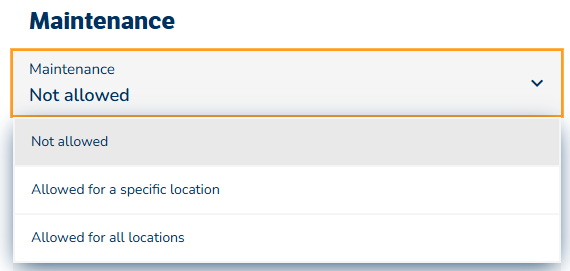
If you have multiple roles, you'll need to update each role accordingly.
Putting a Resource Into Maintenance
To put a resource into maintenance mode, head to Bookings > Maintenance:
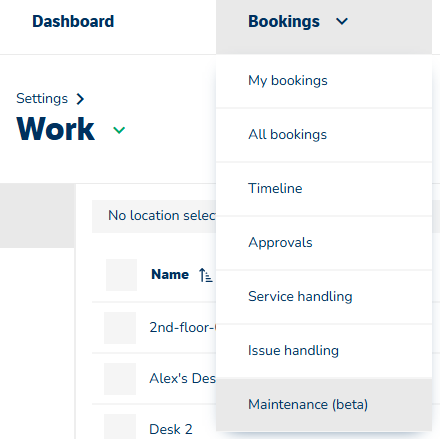
And then select the green 'Add Maintenance' icon.

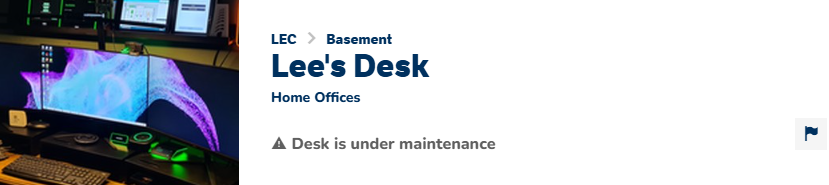
Once you have selected the correct location, you can select multiple resources - these include rooms, desks and also parking. Once saved, this is logged in Bookings > Maintenance. It's also displayed on the portal and you cannot book the resource. In this example, we've used a desk.
For example when you select the resource:
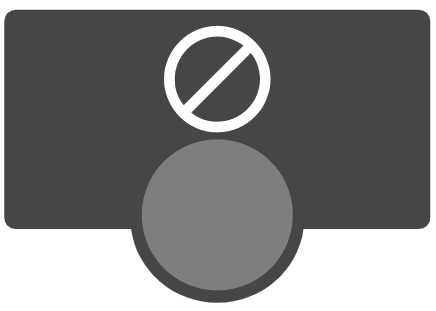
And on the map on your dashboard:
Cancel Maintenance
If the maintenance was completed before the scheduled time and the resource can be booked again, you can manually cancel it. Head back to Bookings > Maintenance and hit the X:
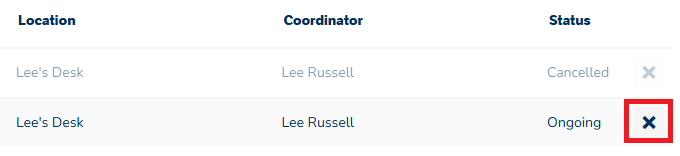
As you can see, previous maintenance is shown but greyed out so there is still a log.
Completed Maintenance
If the scheduled maintenance time passes, you do not need to take any action as GoBright automatically updates to show it's finished and the desk is now bookable again.

Remember: This is done on a per-role role basis and it needs to be enabled under Settings > Users > Roles. This is not enabled by default.
If you have any questions regarding this setup, please log a ticket by contacting support@ascentae.com.