
Jupiter have issued a BIOS update
to support the Trusted Platform Module 2.0 to be enabled on the OPS module.
TPM2.0 is a prerequisite for
Windows 11.
Update Process
1) On the OPS PC, ensure you are logged in with
administrator rights
2) Download the OPS11 BIOS update from the Software
Downloads page of the Jupiter support site (Jupiter.com/support)
3) Run the update which will install and restart
Windows
Change BIOS Settings
1) Ensure a keyboard is attached to the OPS module
2) Reboot OPS
3) Press ‘ESC’ on keyboard on restart to enter BIOS
4) When in the BIOS menu, go to ‘Security’, ‘TPM Operation’ and Enable
5) You will also need to enable ‘Secure Boot’
6) Hit ‘F10’ to save settings
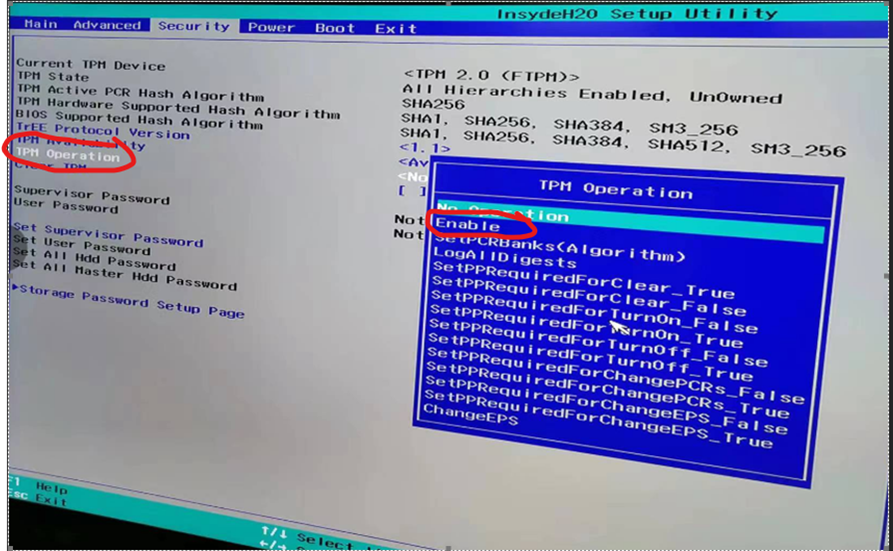
Confirm TPM Enablement
1) Exit BIOS and boot OPS back into Windows
2) In the ‘Run’ dialogue box, type ‘tpm.msc’ to confirm that TPM is enabled
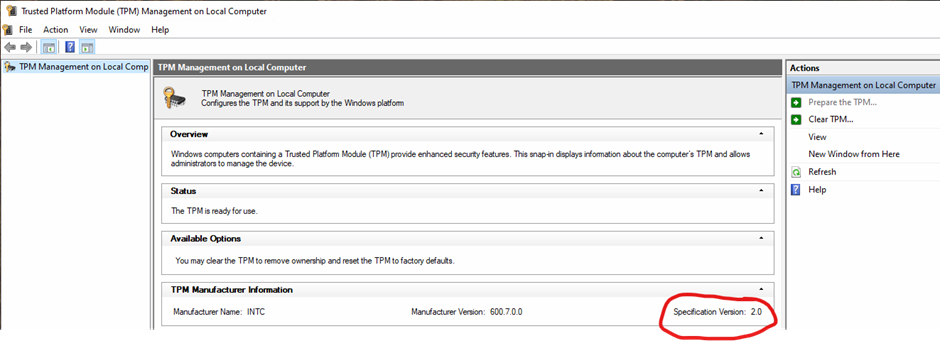
Once these steps are complete, you will be able to upgrade to Windows 11.
If in doubt, ask Ascentae
We are here to help. If you have any questions or concerns about a solution, please contact the Support Team at support@ascentae.com.