.png)
Dictate the summary of this article:
Initial Configuration - Setting SSID
When configuring your MAXHUB host device (V-series screen or W70) for use with the WB05 wireless dongle, an SSID must be configured. By default, the SSID will populate with the device name you have entered during the initial setup.
However, whilst the device name can contain punctuation, the SSID cannot.
If the SSID contains punctuation, when you pair the dongle and attempt to use it on your computer, the dongle cannot connect to the host device.
How to Fix
Follow these steps to resolve the issue
- Exit from the home screen of the host device (if it is a W70, you need to break out of the MTR interface using admin credentials)
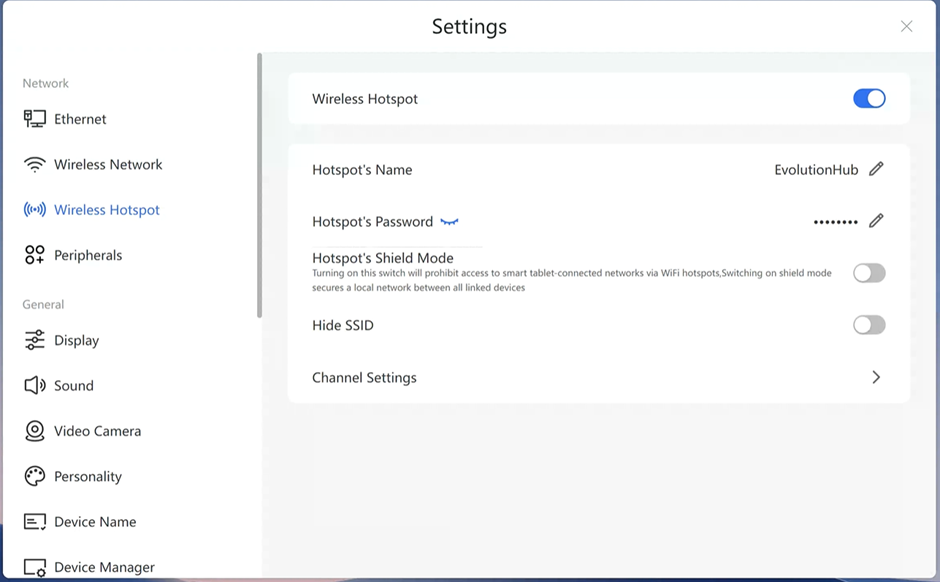
- Go to the Windows desktop and load 'Settings' app
- Navigate to 'Wireless Hotspot' menu
- Ensure 'Wireless Hotspot' is enabled
- Change 'Hotspot Name to remove any punctuation
- Exit app
- Reboot device
- Once device has rebooted, insert the dongle into the USB port on the device to re-pair the dongle
Using the Wireless Dongle
The effective range of the wireless dongle is 4m from the centre of the screen.
Performance will be impacted at extreme range, Symptoms may include
- Loss of connection between dongle and host device
- Delayed screen refresh
- Lagging of video / audio
- Loss of sync between video and audio
Maximum range can be impacted if the screen is recessed, the MTR is mounted behind a screen or the is no 'line of sight' between the host device and the dongle.
If any of these issues occur, relocate the sharing computer and dongle closer to the host device.