
The previous gateway models are the MGW211-DP24 and MGW211-DP28. This article is based on testing the AGW332-EU868 with firmware 1.0.0. We conducted these tests in August / September 2026.
The GoBright Advanced Gateway is basically a solid piece of kit that hooks your devices upto the cloud. It makes sure all the data syncs perfectly and keeps your smart workplace online without any hiccups.
Planning Your Installation
When figuring out where to put your gateway, keep an eye out for things that can block the signal—like thick concrete walls, metal objects, elevators, and stairs. If you hit any dead zones, just add a few extra Advanced Gateways to make sure the whole building gets solid coverage.
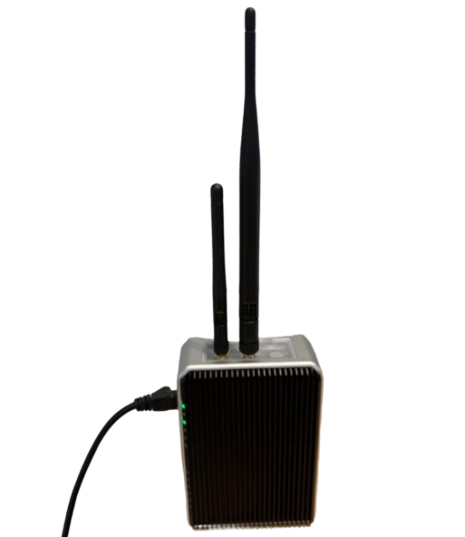 The image to the left shows how the gateway looks once setup.
The Small Antenna
This is used for Wi-Fi communication and both 2.4 GHz and 5GHz are now supported.
The Large Antenna
This is used for any communication if LoRa sensors are being deployed.
We've provided a step-by-step guide below to get you up and running.
⚠️
You must be a administrator on the GoBright portal to ensure you can complete the following steps. The GoBright mobile app is required (Android or iOS) and it needs to be running the latest version.Power Options
The first step is to make sure that the toggle switch on the top of the gateway is toggled off of 'boot'.
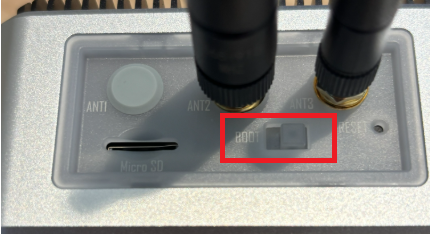
The gateway supports PoE+ at 30W. This is done through the ETH0 port.
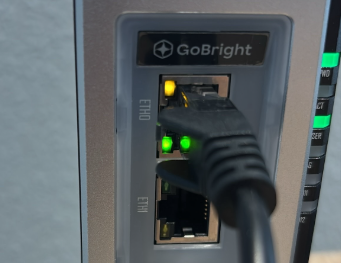
A 230v power supply is not included as standard and must be purchased seperately. Please speak to your Ascentae account manager when ordering
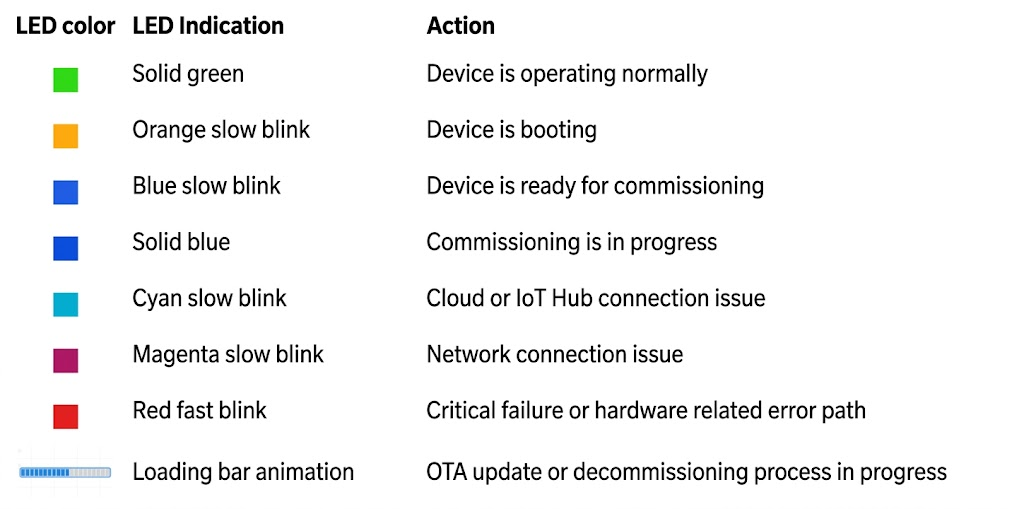
Once you've sorted power to the device, allow around 10 minutes for it to fully boot. During the boot process the LEDs will flash different patterns. At this stage, grab a brew and allow the device to boot and wait for the LEDs to slowly start blinking blue. This is a good sign as we're now in discovery mode, and the device is ready to commission. So, let's get cracking...
Important Note: Discovery mode only remains active for up to 10 minutes after boot. Please reboot again if needed.
Just a heads up...
Configure The Preset
In your GoBright portal, head to Settings > Devices > Profiles and add a new profile name. Change the 'type' to 'Advanced gateway'. Hit save.
Stay in the GoBright portal, and head to Settings > Devices > Commissioning Presets and then 'Add'. Change the Type to 'Advanced Gateway'. Give it a name, select the profile you've just set up, and enable the relevant connection settings. Save this page.
This will then appear in the list under Settings > Devices > Profiles:
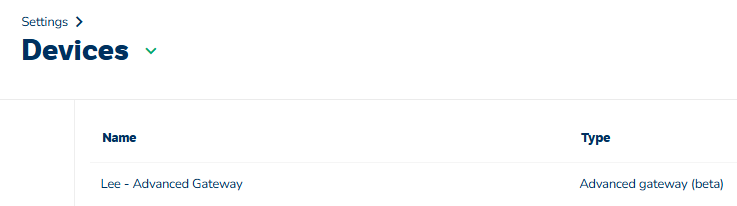
As you can see, for testing purposes, we've called this 'Lee - Advanced Gateway'. At this stage, we recommend giving the device a suitable name - especially if deploying multiple devices across multiple floors.
Now head to Settings > Devices > Commissioning Presets to locate your preset you just configured:
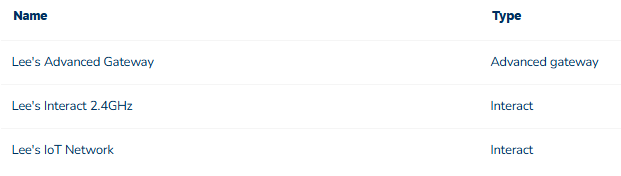 Select the commissioning preset and ensure the connection details are correct. Both 2.4GHz and 5GHz Wi-Fi networks are supported.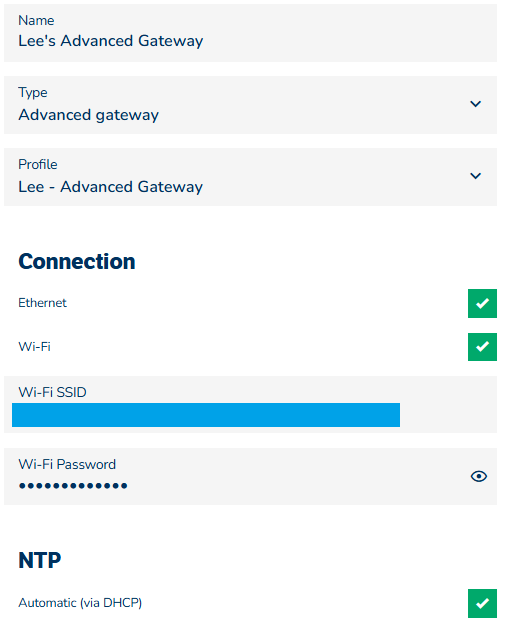
Switch To The GoBright App
⚠️
Ensure that bluetooth is enabled on the device that you're using to commission the gatewayNow we need to switch to the GoBright app as the device has booted. Navigate to Settings → Admin Tools → GoBright Advanced Gateways (beta) → GoBright Advanced Gateways.
Scan the QR code on the back of the gateway. Select the following option:
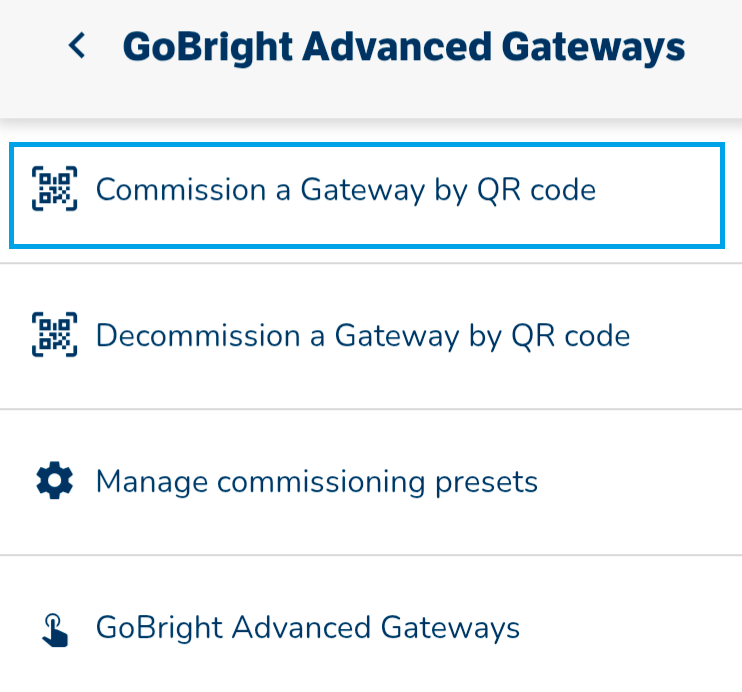
On the next step, select the pre-configured commissioning profile that you setup. Give the gateway a name and complete all the required information. Once ready, press 'Commission Device'.
Next, you will see the following screen:
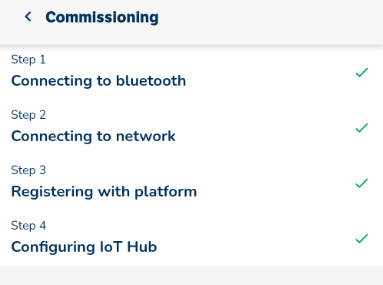
Select 'Done' and you can see the device under the 'GoBright Advanced Gateways' option on the app. Once commissioned, there should be 2 green solid lights on the gateway.
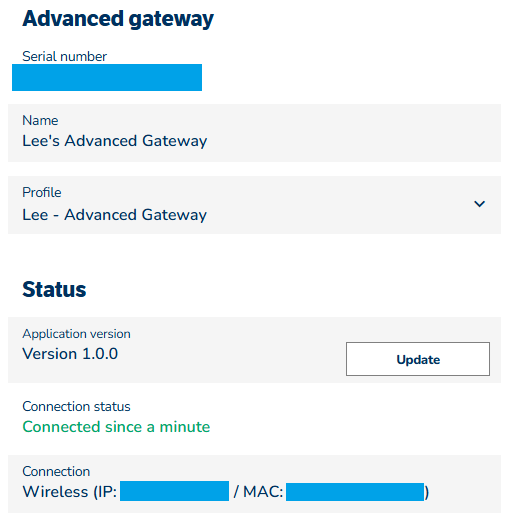
On the web portal, head to Settings > Devices > Gateways to see your device. Here you can:
- See the firmware it's running and update it if required
- Serial number
- Connection status
- Local IP address
Summary
Now you have an active Advanced Gateway configured and setup in your portal.
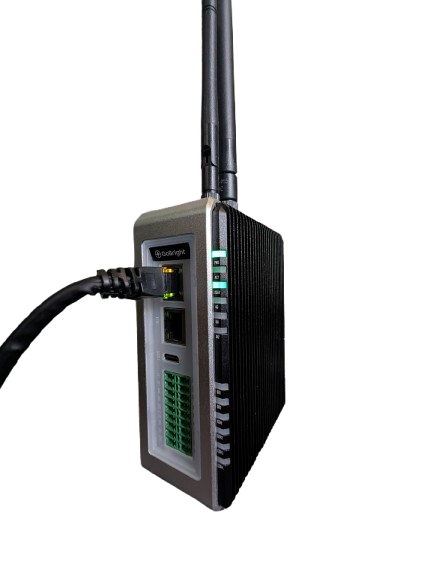 The LED indicators should look like this once successfully activated and enabled in your GoBright portal.
Last Updated: 22/09/2026