.png)
The TCP30M is a touch panel for use with MAXHUB OS powered XBoard all-in-one touchscreens.
Follow these steps to setup wireless connection to your XBoard.
1. Open the Settings menu of your XBoard and confirm that wireless hotspot is enabled. Keep this menu onscreen as you will need the hotspot details for step 5 below.
2. Ensure the TCP30m is within 5m of the XBoard. If the panel is further than this, it may be out of range of the wireless hotspot of the screen.
3. Plug in the TCM30M. It will load a configuration screen
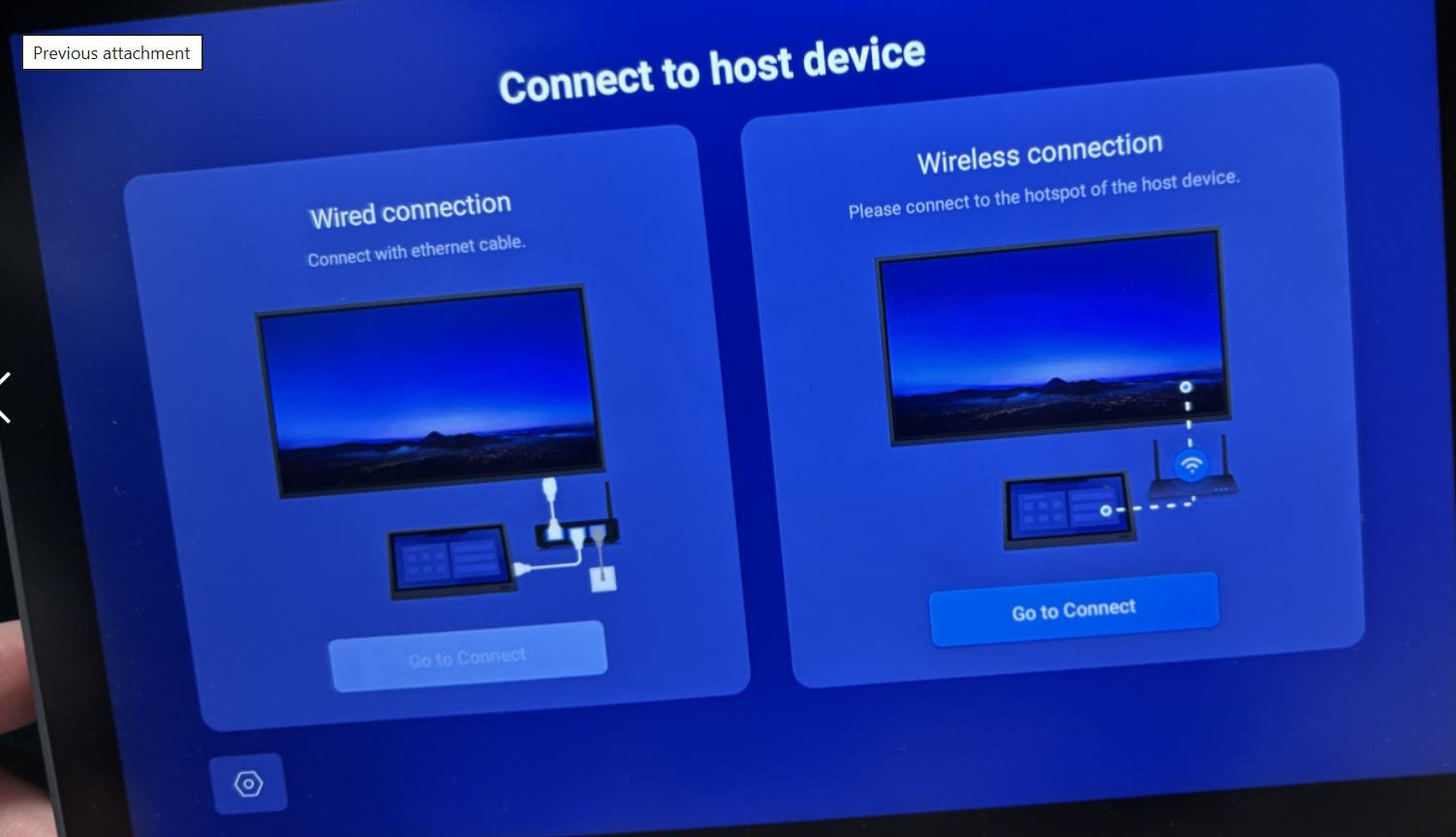
4. Select the 'Go To Connect' option under Wireless connection
5. You will be asked to provide details of the wireless hotspot. The default password is '12345678', but you can confirm this from the Hotspot settings on your XBoard.
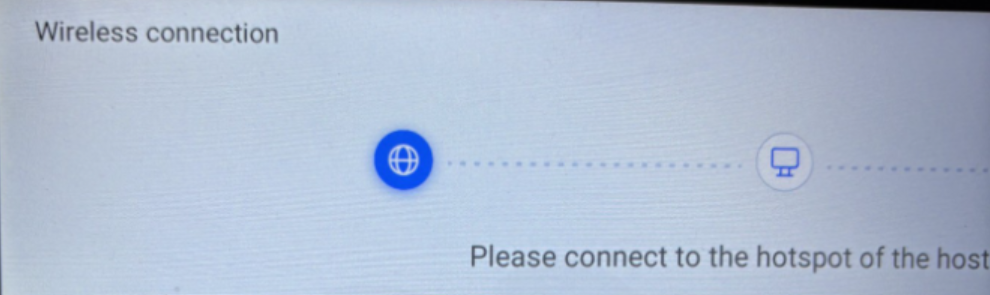 6. Enter the name of your XBoard screen (again, this can be found in the Hotspot settings)
6. Enter the name of your XBoard screen (again, this can be found in the Hotspot settings)7. The panel will then pair with the screen and you will be presented with the home screen.
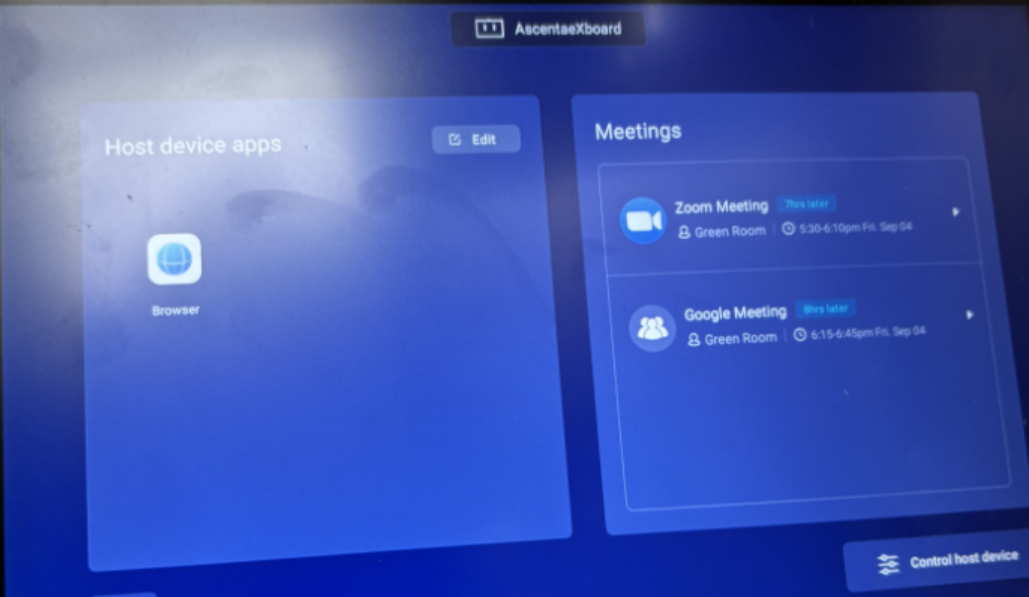
The panel is then ready to use to launch calls and applications and change settings on the XBoard including audio and camera settings.