
This guide will help you get your digitial signage (View) installed and running on your Windows machine.
1. Download the GoBright View software from https://install.gobright.cloud/view/windows/.
2. Create a folder on C:\ named 'gobright-view', and in that folder, create a folder called 'bootstrapper'. Do not use any quotes. For example:

3. Find the Zipfile you've downloaded, and unzip it completely, all folders and files. Find the unzipped folder in the download called ‘bootstrapper’ and place all its content within the bootstrapper file at C:\gobright-view\bootstrapper. This folder should now look like this:
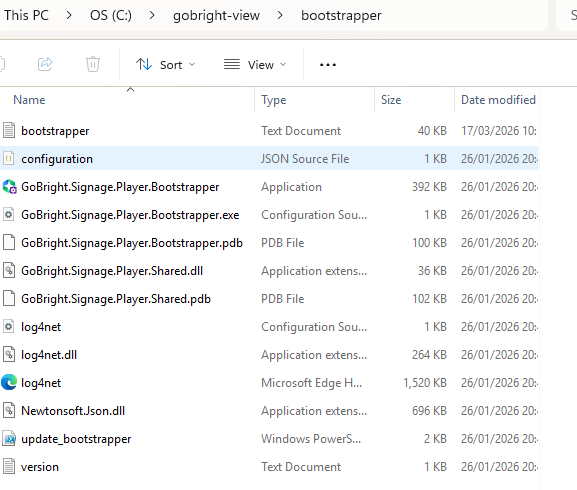
4. Create a shortcut from the application file in the bootstrapper folder on C:\ and place it on the desktop.
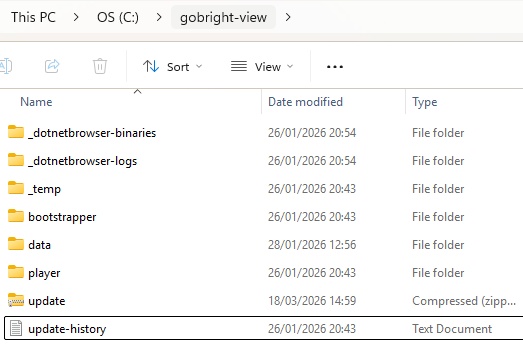
5. Place the original downloaded Zip file in C:\gobright-view\ (make sure it is still zipped) and rename it to ‘update’.
Now C:\gobright-view\ should look like this:
6. Close all open programs like browser, Windows Explorer, etc.
7. Rightclick on the bootstrapper shortcut on your desktop and choose the option: ‘Run as administrator’.
Key Information:
The limit per file for digital signage is 4GB.
Supported File Formats:
Windows:
JPG, JPEG, PNG, GIF, SVG, MP4
WebOS & Android:
JPG, JPEG, PNG, GIF, SVG, MP4
Supported Video Codecs:
H.264/AVC, MPEG-4
For more information on supported file formats, please review this article: